 Textquill
Documentation
Everything you need to get the most out of Textquill — the private, offline OCR extension.
Getting started
Add Textquill from the Chrome Web Store and you're ready to go — there's no account to create and nothing to configure.
- Install the extension from the Chrome Web Store.
- Click the puzzle-piece Extensions icon in the Chrome toolbar, then pin Textquill so its icon is always visible.
- Click the Textquill icon (or right-click any image) to start extracting text.
English recognition and both quality modes are bundled with the extension, so you can start working immediately — even completely offline.
Ways to capture
Textquill gives you many ways to feed it an image. Use whichever fits the moment.
Right-click an image
Right-click any picture on a web page and choose Extract text from the context menu.
Select a screen area
Press Alt+Shift+S (or launch it from the toolbar) and drag a box over any region of the page to capture and recognize just that area.
Capture the visible tab
Grab a screenshot of everything currently on screen in the active tab and extract its text.
Full-page capture
Capture a long, scrolling page top to bottom and pull the text from the whole thing.
Upload, drag & drop, or paste
Open the extension and upload an image file, drag one in, or paste an image straight from your clipboard.
Image URL or base64
Paste an image URL or a base64 data URI and Textquill will load and process it locally.
Recognition modes
Textquill offers three settings:
- Auto (default) — picks the mode for each image automatically. Leave it here unless you have a reason not to.
- Fast — optimized for speed on clean, high-contrast text like screenshots and documents.
- Accurate — for photos and scene text, or anything with unusual fonts, angles, or backgrounds.
Not sure which to use? Keep it on Auto. It reads the image and chooses Fast or Accurate for you.
Languages
Textquill recognizes 38 languages, covering Latin, Cyrillic, Arabic, Indic and East Asian writing systems. It detects the script automatically, so you rarely have to choose one yourself — the full list is in the Language picker on the Scan tab.
English works fully offline out of the box. When you select an extra language for the first time, its data file downloads once and is cached locally — after that it works offline too.
QR & barcodes
If an image contains a QR code or barcode, Textquill decodes it automatically and shows the value alongside any recognized text — no separate scanner needed.
Receipts & contacts
Once text has been extracted, the Extract menu can sort it into fields instead of leaving you to retype them.
Receipts and invoices
Textquill looks for the vendor, the date, the subtotal, the tax and the total, along with the individual priced lines, and shows them as a summary you can copy. Where a total is missing but the parts are present it is calculated for you and labelled as calculated, so you always know which figures were read and which were worked out.
Business cards
A card becomes a contact: the name, job title, company, email address, phone numbers, website and address, downloadable as a .vcf file that every address book will import.
Both are best-effort readings of ordinary text, not a parser for a known format. Anything Textquill isn't confident about is left blank rather than guessed at — a half-filled result you can finish beats a full one that's quietly wrong. Glance over the fields before you rely on them.
Correcting the image
Textquill prepares every capture automatically, but a photograph taken in poor light or at an angle sometimes needs a hand. The Adjust button opens three controls, and scanning again runs on the corrected picture.
- Brightness and contrast — raise the contrast when pale ink is bleeding into the paper, which is the single most useful correction for a photographed page.
- Rotate — for a page captured sideways. If a result comes back as complete gibberish rather than near-misses, orientation is the first thing to check.
- Fix perspective — drag the four corners onto the corners of the page and it is flattened back into a rectangle. This is what to reach for when a photo was taken from an angle and the lines of text fan outwards.
Adjustments always apply to the original capture, so they never pile up on each other and Reset always returns you to where you started.
Grammar & translation
Once you have text, Textquill can help you polish and repurpose it — both work entirely on your device, with no account or API key.
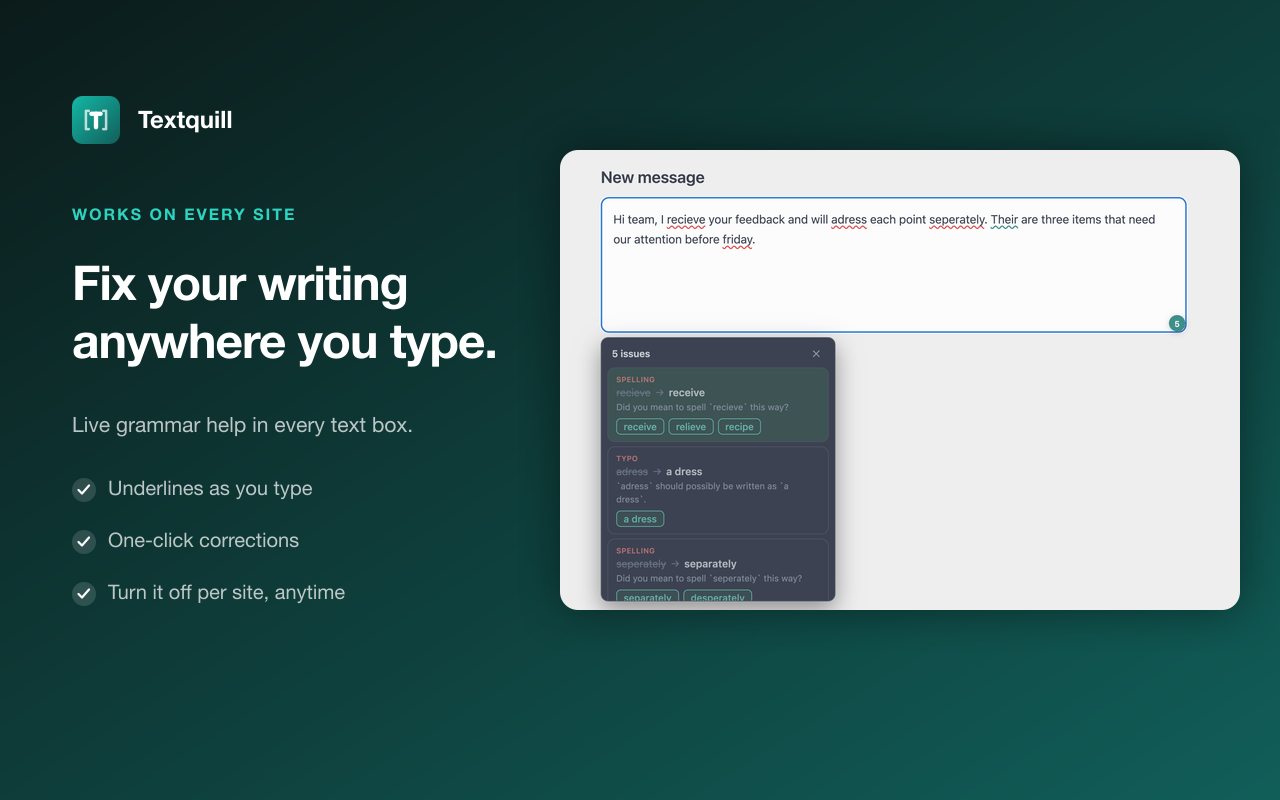
Grammar & spell check
Open a result in the editor and run the proofreader to flag grammar and spelling issues inline. Click a suggestion to apply the fix, or apply them one at a time. The checker runs offline in your browser.
Translate
Translate the extracted text into another language without sending it anywhere. Translation models download once and are cached locally, so it keeps working offline afterward.
Nothing you proofread or translate leaves your device — the same privacy promise as the OCR itself.
Read aloud
Any extracted text can be read back to you with built-in text-to-speech. Handy for proofreading, accessibility, or listening to a passage while you do something else.
History & export
Every extraction is saved to a local history on your device so you never lose a result.
- Search — full-text search across everything you've scanned.
- Favorites — star the results you'll want to find again.
- Export — copy to clipboard (plain, rich text, or Markdown), or export as TXT, Markdown, CSV, HTML, Word, or a searchable PDF.
History lives only on your device. Clear individual entries or the whole history at any time; uninstalling the extension removes it entirely.
Searchable PDF
Download ▸ Searchable PDF saves the scan exactly as it looks, with an invisible text layer placed over each recognised word — so the page still shows your original image, but you can select, copy, and search the text inside it, in any PDF reader.
Because the text layer is built from word positions, it's offered right after you scan an image. Results reopened from history, and PDF or batch runs, don't keep those positions, so the option is unavailable there.
The searchable layer covers Latin-script text. Words in scripts a standard PDF font can't encode — such as Chinese, Japanese, Hindi, or Arabic — are left out of the layer rather than written incorrectly; the image itself is unaffected, and the recognised text is still available through the other export formats.
Copying with formatting
The arrow beside Copy offers Rich text, which keeps paragraph breaks when you paste into Word, Google Docs, or an email, and Markdown. Plain Copy is unchanged.
Privacy
Textquill does not collect, upload, or sell your data. All recognition happens locally in your browser, and your images never leave your device. See the full privacy policy for details.
FAQ
Do I need to pay?
No — no account, no subscription, no trial, and no ads.
Does it upload my images?
No. Everything runs locally on your device; images are never sent to us or any third party.
Does it work offline?
Yes. English and both quality modes are bundled, so they work with no network at all. Other languages download once, then work offline too.
Can it check grammar or translate?
Yes. After extracting text you can proofread it with an offline grammar and spell checker and translate it into another language — both run on your device, with nothing uploaded.
Can I get a PDF I can search?
Yes — Download ▸ Searchable PDF saves the scan with an invisible text layer over it, so the file looks like the original but its text can be selected and searched. See Searchable PDF for what it covers.
Why did my photo scan badly?
Usually the picture rather than the recognition. Try raising the contrast, checking the orientation, and — if it was taken at an angle — flattening the page with Fix perspective, then scan again. See Correcting the image.
Does it handle handwriting?
It varies. Printed text is the most reliable; neat handwriting can work, but results vary.
Which browsers are supported?
Chrome and other Chromium-based browsers running Manifest V3.
Related guides
Step-by-step how-tos for common tasks:
- How to extract text from an image in Chrome
- How to copy text from a screenshot
- How to scan a QR code from an image
- How to extract text from a PDF page
- How to translate text in an image
- How to fix a blurry or angled photo before OCR
- How to turn a business card into a contact
- How to make a scanned PDF searchable
- OCR for non-English text (Hindi, Chinese, Arabic)
- See all guides →